Article written by Rishabh Dev under the guidance of Neha Ganjoo, a seasoned Customer Experience Leader with 15+ years in product & project management, strategy, and customer journey transformation. Reviewed by Abhinav Rawat, a Senior Product Manager.
Personalize email with AI and never send another dull, lifeless outreach again. Whether you’re a sales professional, a solopreneur, or a marketer managing large lists, AI makes it possible to create emails that feel human, relevant, and timely—at scale.
In this guide, you’ll learn exactly how to set up a complete, automated system for personalized email flows using Make.com, Google Sheets, and OpenAI—no coding required.
Let’s dive in.
Key Takeaways
- Automating personalized emails with AI boosts engagement while saving hours of manual work, increasing open rates, Click-Through-Rate (CTR), Click-to-Open-Rate (CTOR), conversions, and more.
- Tools like Make.com, Google Sheets, and OpenAI can be combined in a no-code workflow.
- Context-rich prompts lead to more natural, effective AI-generated email content.
- Regular testing, prompt updates, and human review are essential for quality and results.
- Personalization at scale is now accessible to freelancers, sales teams, and agencies alike.
Why Personalized Emails Still Dominate in 2025
In today’s world, mass emails with generic greetings and vague offers simply don’t cut it. People can spot automation from a mile away—and they hit delete just as fast.
Here’s why personalization still wins:
- Inboxes are crowded. Personal messages stand out.
- People expect relevance. They want to feel like you know who they are.
- It boosts results. Personalized emails can increase open rates by 26% and conversions by up to 10X.
So, what makes an email truly personalized?
It’s not just inserting a first name. It’s about context. You need to reference something the reader cares about—like a recent blog post, industry trend, or their company’s mission. That’s where AI tools for marketing are stepping in, giving businesses the ability to create hyper-relevant messages at scale.
Also Read: How to Use AI for Content Marketing
How AI Makes Personalization Effortless
Writing hundreds of custom emails manually isn’t practical. That’s where AI steps in.
With tools like OpenAI’s GPT, you can generate emails that are:
- Natural and conversational
- Customized based on the recipient’s website or data
- Fast to create—and easy to scale
When you combine GPT with Make.com’s no-code automation and Google Sheets to manage data, you unlock a scalable, repeatable system to personalize email with AI. Beyond outreach, this setup also shows how to use AI for marketing in broader campaigns—whether you’re running lead-nurture flows, upsell offers, or even event invites.
Your 9-Step Workflow to Personalize Email with AI
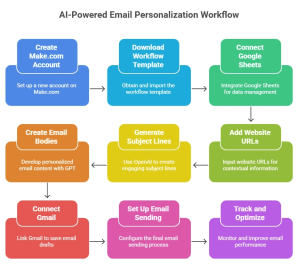
This is the heart of the guide—a complete walkthrough to set up your AI-powered email workflow.
Step 1: Create Your Make.com Account
Make.com is the backbone of this automation system. It connects different tools—like Gmail, OpenAI, and Google Sheets—and makes them work together.
Here’s how to get started:
- Go to Make.com
- Sign up for a free account
- Explore the dashboard and get comfortable with the drag-and-drop interface
- You don’t need to write a single line of code!
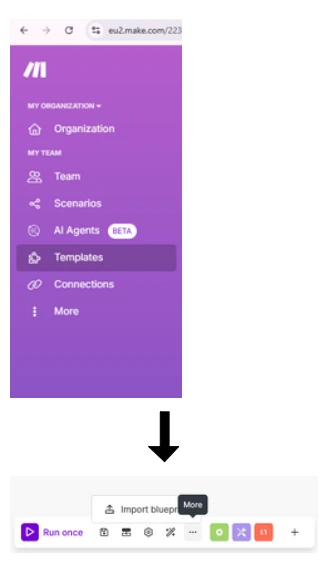
Step 2: Download and Import the Workflow Template
To speed things up, you can use a pre-made workflow blueprint that’s already built for personalizing cold emails.
Steps:
- Download the workflow template
- In Make.com, go to Templates → Create New
- Click the three-dot menu at the bottom left and choose Import Blueprint
- Upload the JSON file and click Save
You’ll now see the complete workflow on your screen, ready to customize.
Also Read: How to Use AI in Marketing
Step 3: Connect Google Sheets to Manage Data
Your Google Sheet acts as your central data hub.
It will contain:
- Recipient details (name, email, company, role)
- Website URLs for research
- Columns to save AI-generated subject lines and email bodies
To connect it in Make.com:
- Click on the Google Sheets node in the workflow
- Choose Add Connection and log into your Google account
- Select the sheet you’ll be using for the email campaign
Step 4: Add Website URLs for Personal Context
AI works best when it has something relevant to work with. Adding each recipient’s website URL lets GPT pull context and personalize accordingly.
Do this:
- Add a new column (e.g., Column O) titled “Website URL”
- Paste in the homepage or a relevant blog post URL for each lead
- The HTTP module in Make.com will fetch content from the URL
- GPT will then use this to craft unique emails
This small addition provides your AI with the context it needs to sound more human.
Step 5: Use OpenAI to Generate Subject Lines
The Subject GPT node will create a unique subject line based on the content of each website.
How to set it up:
- Add your OpenAI API key in the Subject GPT node
- Customize the prompt (e.g., “Write a catchy subject line for a B2B SaaS founder using this site: [URL]”)
- Save the generated subject in, for example, Column Q of your sheet
Now you’re automating attention-grabbing subject lines in seconds.
Step 6: Create Personalized Email Bodies with GPT
Now it’s time to generate the email message itself.
Steps:
- Head to the Email Body GPT node
- Enter the same OpenAI API key
- Adjust your prompt (e.g., “Write a 3-sentence cold email to a marketing director based on this page: [URL]”)
- Save the output in a new column (e.g., Column R)
Step 7: Connect Gmail to Save Drafts
Before sending anything, it’s smart to save the AI-generated emails as drafts so you can review them.
Here’s how:
- Connect your Gmail account to Make.com
- Map the following fields:
- To: Column P (email address)
- Subject: Column Q
- Body: Column R
- Enable the Map toggle in the top right of the Gmail node
Drafts will appear automatically in your Gmail account.
Also Read: How to Use AI for Affiliate Marketing
Step 8: Set Up Final Email Sending
When you’re ready to go live, you can add another Gmail node to send the emails directly.
You can:
- Select the module that says ‘Send an Email’
- Keep all mapping fields the same
- Change the folder to “Sent”
- Monitor deliveries from Gmail or your CRM
Step 9: Track, Analyze & Optimize
Once your system is running, the next step is improving it.
Here’s how to optimize your campaign:
- Track open rates to evaluate subject line effectiveness
- Measure reply rates to test which email styles convert best
- Refine your GPT prompts for tone, structure, or call-to-action
- A/B test subject lines and bodies
Continuous tweaking = long-term results.
Use Cases: Who Can Personalize Email with AI?
This system is versatile and works across industries.
Sales Reps & SDRs
- Cut down manual writing time
- Increase meetings booked
- Maintain a personalized touch across 100s of leads
Freelancers & Coaches
- Personalize pitches without hiring help
- Warm leads before a discovery call
- Stay on-brand without being generic
Marketing & Growth Teams
- Run campaigns at scale
- Re-engage cold lists
- Launch hyper-targeted experiments
And the benefits don’t end with sales. Marketers can integrate this workflow with AI tools for content marketing to create consistent, on-brand messaging across blogs, ads, and email campaigns, all with less effort.
Also Read: AI Tools for Affiliate Marketing
Pro Tips to Make AI-Generated Emails Feel Real and Convert Better
Personalizing emails with AI is powerful—but only when it feels natural. GPT is an amazing assistant, but you’re still the creative director. Here are some practical tips to elevate your AI-generated content:
1. Use Warm, Conversational Prompts
The tone you use in your prompt heavily influences GPT’s output. If your emails sound stiff or salesy, adjust the prompt language.
✅ Try this: “Write a short, friendly email to a startup founder introducing a new AI tool that helps automate lead follow-ups.”
❌ Avoid this: “Compose a professional cold email about a product.”
2. Include Specific Context
AI shines when it has input data to work with. Feed it specifics like:
- A company’s blog post title
- The recipient’s recent LinkedIn activity
- A product they’ve launched
3. Focus on One Clear Idea Per Email
Avoid overstuffing emails with too much info. Each message should have one core takeaway or CTA. You should stick to:
- One offer or benefit
- One clear CTA (e.g., “Let’s hop on a quick call”)
Also Read: How to Use AI for Content Marketing
4. Use a Light, Casual Tone Where Appropriate
Unless you’re emailing C-level execs in highly regulated industries, a conversational tone often works best.
The following additions can make your message more relatable and memorable:
- Emojis (when on-brand)
- Humor or puns
- Personal anecdotes
5. A/B Test Subject Lines and CTAs
Even with AI, testing is still king. You should test variables like:
- Subject line tone: serious vs. playful
- CTA type: hard vs. soft (e.g., “Book a demo” vs. “Open to chat?”)
- Personalization depth: generic company reference vs. specific news mention
Avoid These Common Mistakes When You Personalize Email with AI
Even the best tech can fail if misused. Here’s what to avoid when setting up your personalized email flow:
1. Blindly Trusting AI Without Human Review
AI-generated content can sometimes be:
- Repetitive
- Too vague
- Factually inaccurate (e.g., wrong product mentions)
💡 Use the “Drafts” mode in Gmail for a manual QA step.
2. Using Overly Generic Prompts
If you tell GPT to “write a cold email about marketing,” you’ll get exactly that: generic, vanilla fluff.
✅ Try: “Write a casual, 3-sentence email to a marketing director who just published a blog post on user acquisition. Mention how our SaaS helps reduce churn.”
Specificity is the secret to standing out.
3. Skipping Domain Warming and Deliverability Best Practices
If your emails go straight to spam, no amount of personalization will help. Follow the below given deliverability checklist:
- Use a custom domain and warm it up slowly
- Avoid ALL CAPS and spammy phrases like “FREE” or “LIMITED TIME”
- Keep link usage minimal in cold outreach
- Add SPF, DKIM, and DMARC records to your domain
4. Not Updating Prompts Frequently
AI is powerful, but it gets repetitive over time. If you notice your emails starting to feel similar, your prompts may be stale. You should update prompts every:
- 50–100 emails sent
- New campaign or audience segment
- Major product update or offer change
5. Ignoring the Human Touch
AI should assist—not replace—authenticity. You can (and should) add manual tweaks where needed, especially if:
- A lead is high-value
- The conversation starts to warm up
- You want to follow up with a more tailored response
Conclusion
Personalized email doesn’t have to mean hours of manual work. With the right workflow, you can combine the power of AI, automation, and smart data handling to create emails that feel handcrafted—even when you’re sending them at scale. Tools like Make.com, Google Sheets, and OpenAI are making it possible for anyone, from solopreneurs to enterprise teams, to build impactful, automated outreach systems that convert.
So whether you’re tired of generic templates or just want to save time while increasing your reply rates, this 9-step system is your fast track to better engagement. Start small, test often, and let AI handle the heavy lifting. Your future self—and your inbox—will thank you.
FAQs – Personalize Email with AI
1. Can I do this without coding?
Absolutely. Make.com is fully no-code and works with drag-and-drop.
2. Will this work with my CRM?
Yes! Make.com supports integrations with HubSpot, Pipedrive, and more.
3. How much does this cost?
Make.com and OpenAI both offer free tiers. You can start without spending a dollar.
4. How do I get better results from GPT?
Write better prompts. Be specific, include context, and give it personality.
5. Can I send newsletters too?
This method works best for 1:1 or small-batch personalized outreach.